
After submitting feedback, you can monitor its progress using the Feedback Status page.
Each feedback submission is assigned a unique Reference ID, allowing you to view its current status, read responses from the PrimeExam development team, and continue the conversation if additional information is requested.
Opening the Feedback Status Page
To check the status of a feedback submission:
- Click Feedback Status at the top of the main window.
The Feedback Status page displays all feedback submissions associated with your installation of PrimeExam.
Information Displayed
For each feedback submission, the status page displays:
- Submission date and time.
- Reference ID.
- Current status.
- A preview of your original feedback.
- Any response from the PrimeExam development team.
- The conversation history for the submission.
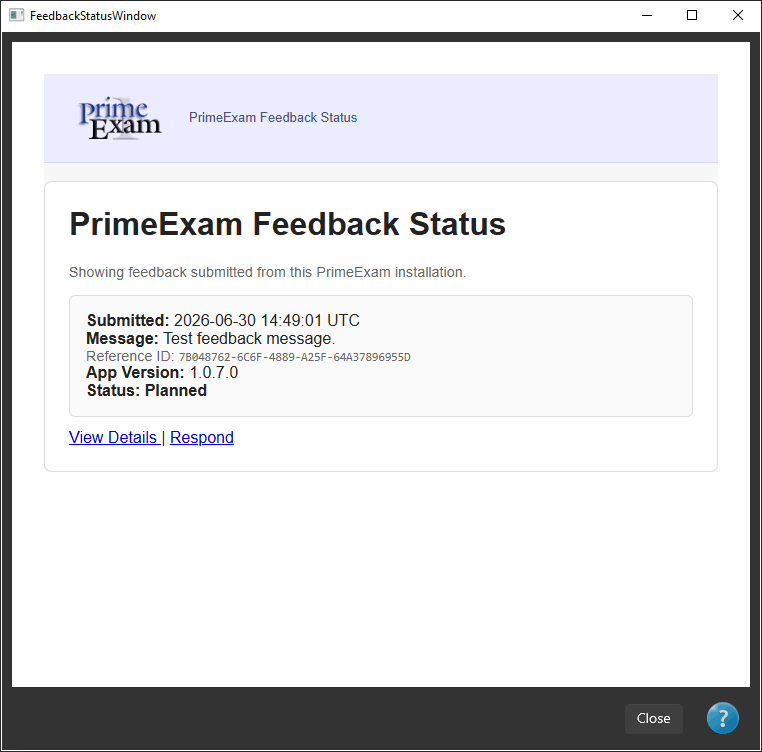
Feedback Status Values
Each feedback submission is assigned one of the following status values.
Received
Your feedback has been received successfully and is awaiting review.
Reviewing
The development team is currently evaluating your submission.
Additional testing or investigation may be required before a decision can be made.
Need More Information
More information is required before the issue can be investigated further.
If you see this status, click Respond and provide the requested information.
Planned
The issue has been accepted and is planned for a future release of PrimeExam.
Although no completion date can be guaranteed, the request has been added to the development plan.
Resolved
The issue has been corrected or the requested feature has been implemented.
If applicable, the response may indicate the version of PrimeExam containing the fix.
Declined
After review, it was determined that no changes will be made.
This may occur if:
- The reported behavior is intentional.
- The request is outside the scope of PrimeExam.
- The requested change would create undesirable side effects.
Whenever possible, an explanation will be included.
Conversation History
The Feedback Status page displays the complete conversation associated with your feedback submission.
Messages are shown in chronological order and identify whether each message was sent by you or by the PrimeExam development team.
Keeping all communication under a single Reference ID makes it easier to follow the discussion and preserves the history of the issue.
Responding to a Request
If additional information is requested:
- Click Respond.
- Enter your reply.
- Click Submit Response.
Your message is added to the existing conversation using the same Reference ID.
There is no need to submit a new feedback report when continuing an existing discussion.
Best Practices
When replying to a request for additional information:
- Answer each question as completely as possible.
- Include the steps needed to reproduce the problem.
- Mention whether the issue still occurs after restarting PrimeExam.
- Include any additional observations that may help diagnose the issue.
The more information you provide, the easier it is to investigate and resolve the problem.